

Express courier. Direct.
Also overnight.
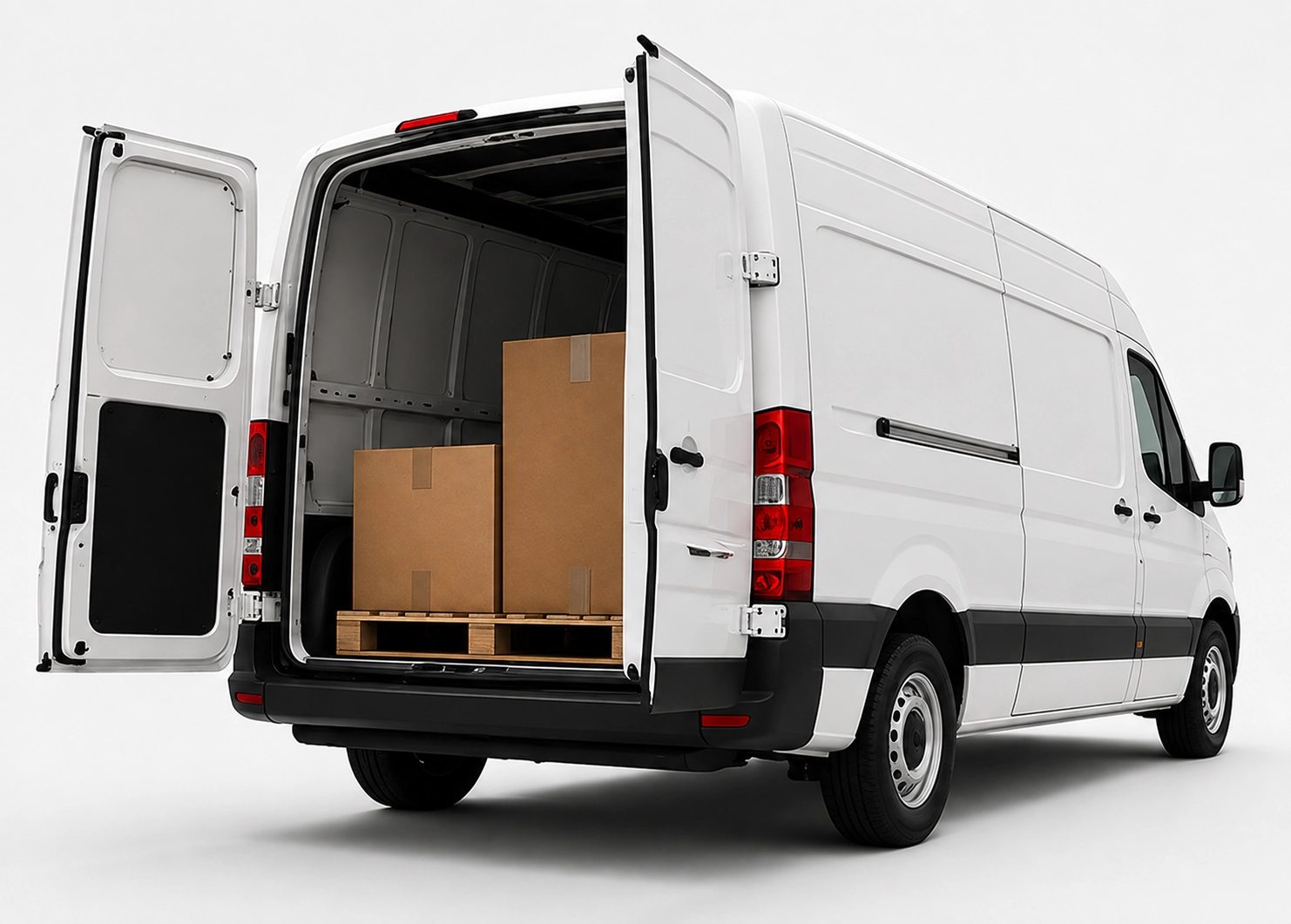
x25pronto Switzerland takes goods direct to the destination. Small loads go by car. Larger loads go by van or Van XL. Direct, express and overnight trips run Monday to Sunday when a slot is free. Free times are shown in the booking calendar. This keeps the plan clear.
Guide: Correctly Name and Upload Photos from Smartphone
Practical steps for employees: how to take shipment photos, name files consistently and upload them securely to the courier portal.
Quick answer
This guide shows employees in Swiss companies how to take photos of shipments with a smartphone, rename them according to a standard convention, and securely upload them to the courier portal. Follow these steps to improve traceability, speed processing, and reduce follow‑up questions.
Why a naming convention matters
Consistent file names help operations and accounting. They cut down on questions and make it faster to find photos in portals and emails. For courier tasks in Zurich, Geneva or Basel, good naming saves time.
Prepare before you take photos
Use an up‑to‑date smartphone and keep camera and OS updated. Close unnecessary apps to save battery and storage. Check free space and enable location only if required. Remove personal metadata if your company requests it.
How to photograph shipments
Take photos in daylight or with good artificial light. Capture at least three images: a full view of the parcel, a clear photo of the address label and a photo of contents or special markings (e.g., fragile). Keep the label flat to the camera. Use focus and check legibility before saving.
File naming convention: clear and uniform
Use this format: <ClientCode>_<OrderNo>_<Type>_<Date>_<Seq>. Example: ABB_24680_Package_20260914_01.jpg. ClientCode (short company name), OrderNo (internal reference), Type (Package, Label, Content), Date (YYYYMMDD) and a sequence for multiple photos. Use only alphanumeric characters and underscores. No spaces or local special characters.
Rename files on your phone
On iPhone: open the photo > Share > Save to Files, then long‑press the file in Files > Rename. On Android: open Gallery or Files, select image > menu > Rename. If your courier portal has a mobile app, check whether it allows renaming before upload.
Secure upload to the courier portal
Log in with your company credentials. Select Order > Attach files > Upload photos. Upload the renamed files and check the preview. Add short notes in the comment field (e.g., “address legible”, “no damage”). Ensure the portal uses HTTPS. For sensitive content, consult your data protection or legal team first.
Frequently asked questions
How many photos per shipment are enough?
At least three: full parcel view, clear address label, and a detail shot for special conditions. Add more if there is damage or ambiguity.
Should I keep location metadata in photos?
Only if company policy allows it. Remove location data when not needed or when customers request it.
What if I have poor mobile reception during upload?
Save the renamed files locally in the Files app. Upload them later via office Wi‑Fi or use a portal app that resumes uploads automatically.
Can file names be generated automatically?
Some courier portals or company apps add order numbers automatically. Check app settings and follow your company’s naming rules.